Security > Vaccine > Console User Guide > AhnLab(AhnLab CPP)
This document describes the procedure of enabling and disabling vaccine agents, and how to apply the service.
Set up Security Groups
To communicate with the vaccine server, add the following to the security group:
| Direction | Port | Region | CIDR |
|---|---|---|---|
| Egress | 5465, 5645, 8803, 8804, 8807, 8809, 8810 | Korea (Pangyo), Korea (Pyeongchon) | 114.110.145.157/32 or |
Integrate Vaccine Service Gateway
Service gateways allow clients and Vaccine server to communicate with each other inside NHN Cloud, instead of going through the external internet. Please refer to the following guide to learn how to integrate Vaccine Service Gateway:
- In Network > Service Gateway, click +Create Service Gateway.
- Enter the name, VPC, and subnet of the service gateway you want to create, select the service as Vaccine, and click OK to create the Vaccine service gateway.
Vaccine Agent Activation Process
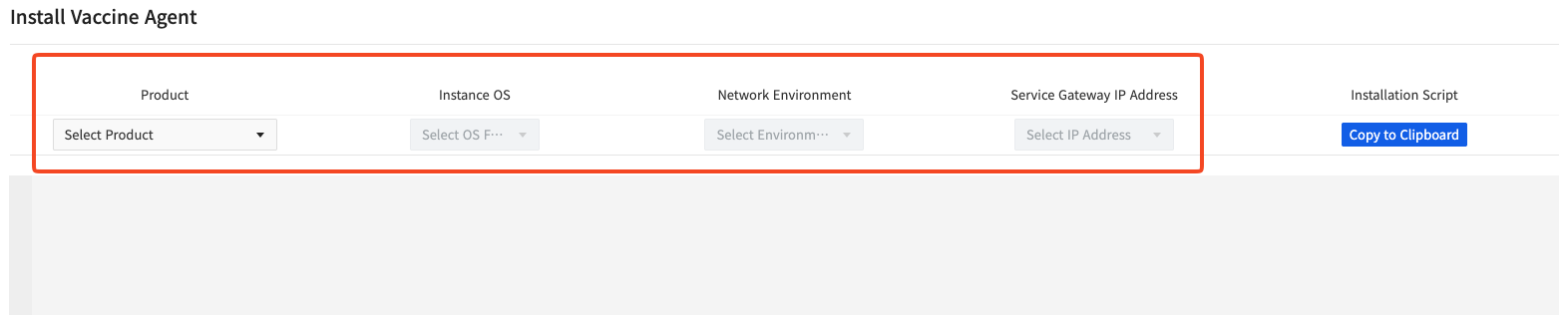
Load the vaccine installation script based on the product name, Instance OS, Network Environment and Service Gateway IP address.
Linux-based Agent
-
Click Copy to Clipboard to copy the installation script.
-
Access the instance terminal to install.
-
Create and run the Agent script as administrator.
-
Create a script using editors such as the vi editor.
- Change the permission of the created script file.
- Execute the file.
[rocky@vaccine-test ~]$ cd ~
[rocky@vaccine-test ~]$ vi agent.sh
[rocky@vaccine-test ~]$ chmod 744 agent.sh
[rocky@vaccine-test ~]$ ./agent.sh
####### DownloadUrl :https://114.110.145.157:5645/web/agent/4/test-lin-setup.tar.gz #######
####### filePath : /root/test-lin-setup.tar.gz #######
  % Total    % Received % Xferd  Average Speed   Time    Time     Time  Current
                                 Dload  Upload   Total   Spent    Left  Speed
100 34.0M  100 34.0M    0     0  2041k      0  0:00:17  0:00:17 --:--:-- 2037k
File Download Complete
ahnagent-install.sh
ahnagent-install.sh.ahc
eal.tar
ahnagent-install.conf
Valid IP 114.110.145.157

Start the installation for ahnagent

Succeed to extract "eal.tar" archive
Check Linux ID and version ...
-> OS ID and version : ROCKY_9
   OS Description : Rocky Linux 9.5 (Blue Onyx)
"ROCKY_9" is supported
[INFO] get to install path: /usr/local/ahnlab/cppagent
The installed agent will be removed when installing a new agent

    "Before uninstall ahnagent, Start the uninstallation for mgmt products"

[INFO] get to install path: /usr/local/ahnlab/cppagent
skip uninstallation of mgmt products

    "Start to uninstall agent from SystemD"


    "Complete to uninstall agent from SystemD"


    "Complete the uninstallation for ahnagent package"

[INFO] get to install path: /usr/local/ahnlab/cppagent
Install ahnagent package ...
Succeed to install ahnagent package to /usr/local/ahnlab/cppagent
force server ip: 114.110.145.157
appkey: P9tZYRpWDZBBTU3h
user name: 9b273bb9-edb4-42f1-b11b-4d1befcde97b
Created symlink /etc/systemd/system/multi-user.target.wants/cppagent.service → /usr/lib/systemd/system/cppagent.service.
Succeed to enable ahnagent
Succeed to start ahnagent

    "Complete the installation for ahnagent package"

[rocky@vaccine-test ~]$
Windows-based Agent
-
Copy the console script.
-
Access the instance terminal to install.
-
Create and run the Agent script as administrator.
-
Create a script file with a text editor, such as Notepad.
- Enable the command prompt (cmd) window with administrator privilege.
- Run it in the form of powershell -file "file path/filename".
C:\Users\administrator>powershell -file C:\Users\administrator\Desktop\agent.ps1
PowerShell Major Version : 5.1
DownloadType : System.Net.Object.WebClient Download, DownloadUrl : https://114.110.145.157:5645/web/agent/3/test-win-setup.exeFile Install : C:\Users\ADMINI~1\AppData\Local\Temp\2\test-win-setup.exe /F "114.110.145.157" /A "P9tZYRpWDZBBTU3h" /U "da9b75db-269e-48ad-ba93-99949303c256"
File Install Complete!!

C:\Users\administrator>
Getting Started
Click Refresh to see the installed Agent information in the status list. The Agent is automatically activated after installation.
Vaccine Agent Deactivation Process

Click Disable to stop using the vaccine.
How to Use Vaccine Service
Malware Analysis Guide
- CPP does not provide a guide to restore files. If you need malware analysis, please contact Customer Support for analysis after collecting the analysis files.
- Linux
- Extract malware diagnostic log files
- Enter CLI mode by entering /usr/local/ahnlab/v3net/bin/v3cli
- Export malware diagnostic log files by entering “show scanlogs export”
- Enter “quit” (to exit CLI mode)
- Submit the virus.csv file stored in the /usr/local/ahnlab/v3net/tmp/ path
- Extract analysis logs
- Run the command /usr/local/ahnlab/cppagent/bin/ahnrpt -s ahnreport.arc -agreePrivacyPolicy v
- Submit the ahnreport.arc file stored in the command execution path
- Extract malware diagnostic log files
- Windows
- Extract malware diagnostic log files
- Double-click V3 icon in the bottom-right corner of the taskbar
- From the V3 main screen, click Tools > Logs
- Click Diagnostic Logs > Save to File
- Submit the saved malware diagnostic log files (csv)
- Extract malware analysis logs
- Run C:\Program Files (x86)\AhnLab\CPP Agent\1.0\bin\AhnRpt.exe
- Click Report Malware at the top and proceed with user agreement
- In the Details field, enter your malware-related questions and save
- Enter a save path and filename for the log collection file and save it
- After the log collection is complete, submit files in the save path (arc compressed files)
- Extract malware diagnostic log files
- Linux
Agent Health Check Guide
- Linux
- Enter “systemctl status cppagent”
[root@vaccine-test ~]# systemctl status cppagent
● cppagent.service - "AhnLab Security Agent Linux Service"
   Loaded: loaded (/usr/lib/systemd/system/cppagent.service; enabled; vendor preset: di>
   Active: active (running) since Thu 2026-02-05 14:53:03 KST; 17min ago
 Main PID: 19486 (ahnagent)
    Tasks: 9 (limit: 48701)
   Memory: 6.2M
   CGroup: /system.slice/cppagent.service
           └─19486 /usr/local/ahnlab/cppagent/bin/ahnagent
- Enter “systemctl status cppagent”
- Windows
- Enable the command prompt (cmd) window
- Enter sc query CPPAgentSvc
C:\Users\administrator>sc query CPPAgentSvc

SERVICE_NAME: CPPAgentSvc
        Type               : 10  WIN32_OWN_PROCESS
        Status               : 4  RUNNING
                                (NOT_STOPPABLE, NOT_PAUSABLE, ACCEPTS_SHUTDOWN)
        WIN32_EXIT_CODE    : 0  (0x0)
        SERVICE_EXIT_CODE  : 0  (0x0)
        Checkpoint             : 0x0
        WAIT_HINT          : 0x0
Analysis Guide
- When an agent is offline or inactive, the following files are collected and submitted to Customer Support for analysis:
- Linux
- Run the command /usr/local/ahnlab/cppagent/bin/ahnrpt -s ahnreport.arc -agreePrivacyPolicy v
- Submit the ahnreport.arc file stored in the command execution path
- Windows
- Run C:\Program Files (x86)\AhnLab\CPP Agent\1.0\bin\AhnRpt.exe
- Click Report Product Error at the top and proceed with user agreement
- In the Details field, enter the symptoms and save
- Enter a save path and filename for the log collection file and save it
- After the log collection is complete, submit files in the save path (arc compressed files)
- Linux
Uninstall Guide
- Linux
- Access the instance and delete the CPP Agent.
- Run /usr/local/bin/uninstall-cppagent
- Windows
- Access the instance and delete the CPP Agent.
- From Control Panel > Programs and Features, select and uninstall AhnLab Security Agent (CPP)
Operation Inquiry
Inquiry Item
- Excluding specific file and folder exceptions
- Troubleshooting agent installation failures
- Vaccine detection event inquiries
- Reporting and restoring false positives
- Analyzing instance malfunctions caused by antivirus
How to Inquire
- How to Inquire: Customer Support > Contact Us
- Business Hours: Mon - Fri 9 AM - 6 PM
Table of Contents
- Security > Vaccine > Console User Guide > AhnLab(AhnLab CPP)
- Set up Security Groups
- Integrate Vaccine Service Gateway
- Vaccine Agent Activation Process
- Linux-based Agent
- Windows-based Agent
- Getting Started
- Vaccine Agent Deactivation Process
- How to Use Vaccine Service
- Malware Analysis Guide
- Agent Health Check Guide
- Analysis Guide
- Uninstall Guide
- Operation Inquiry
- Inquiry Item
- How to Inquire